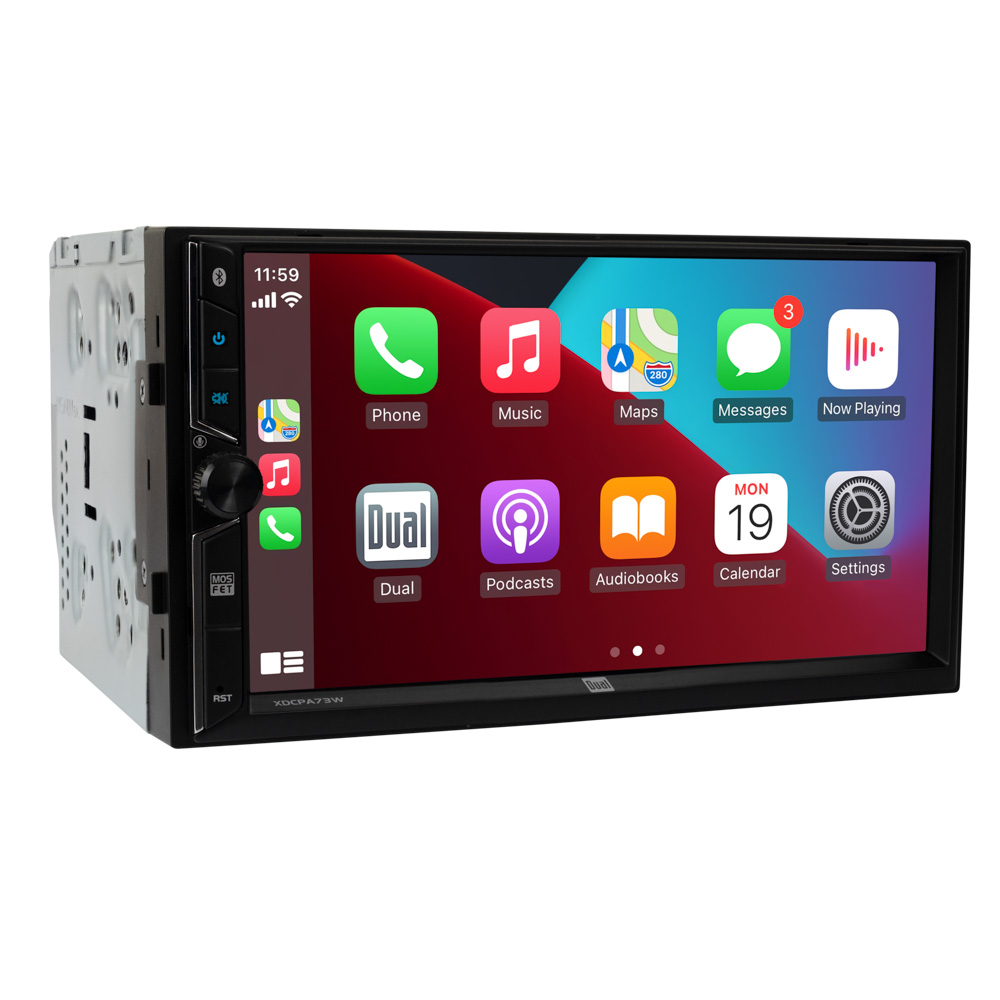
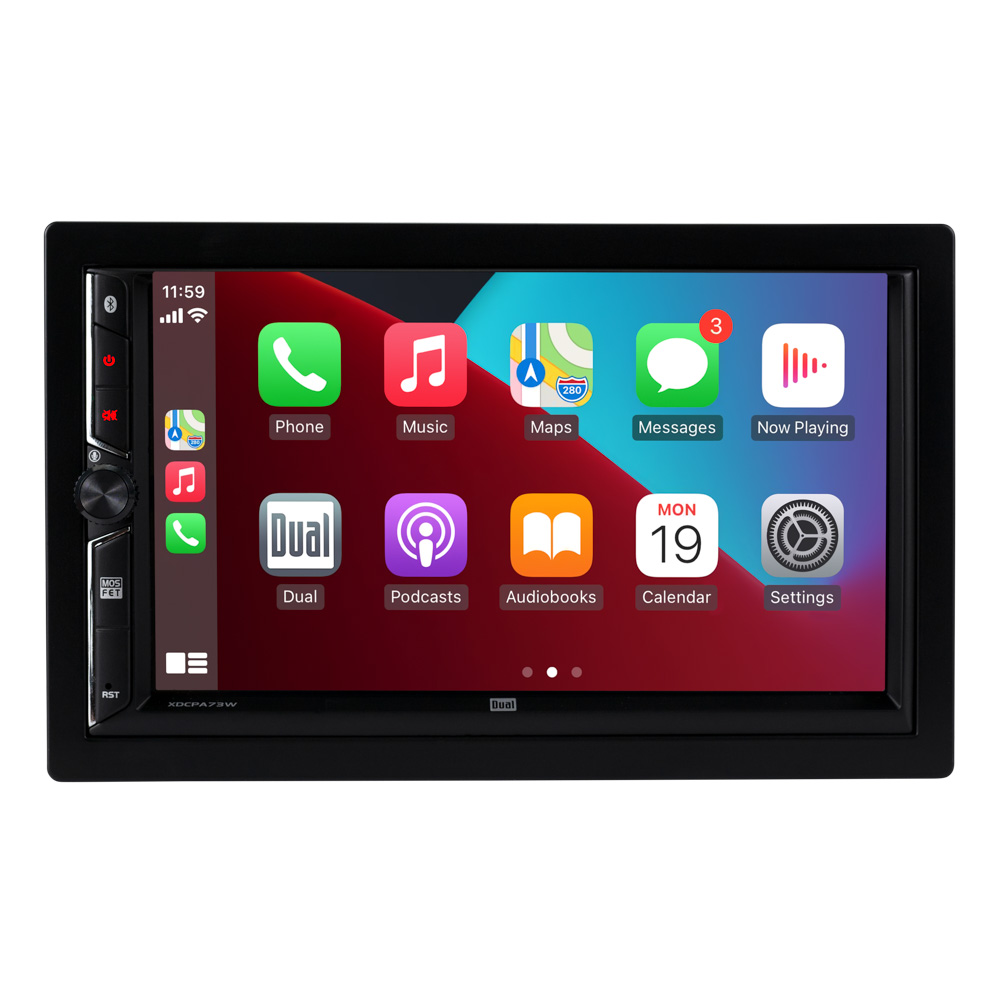
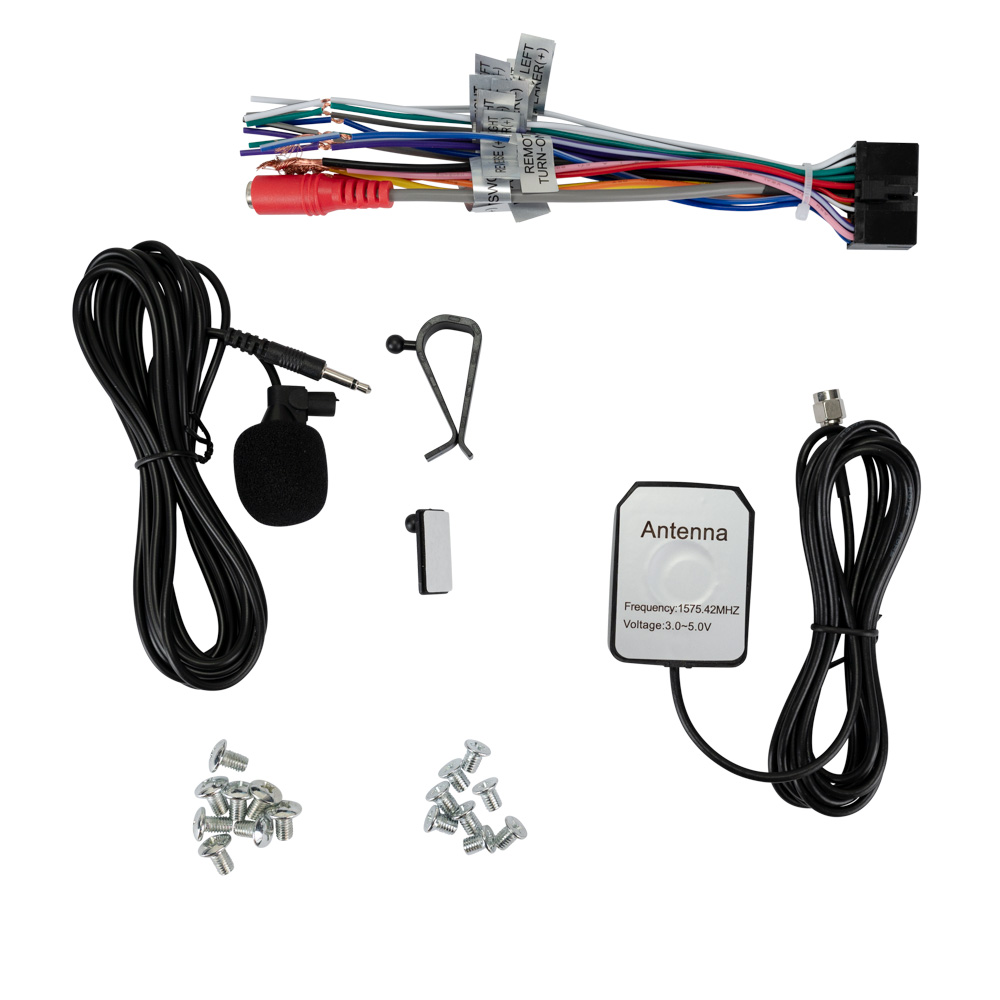
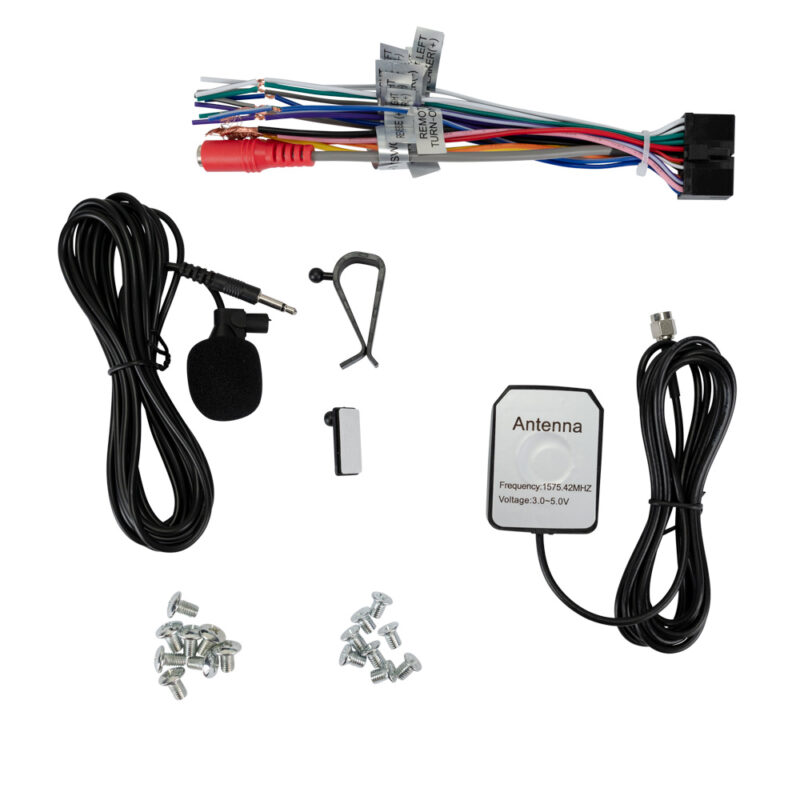
7″ Receiver with Wireless Android Auto and Apple Carplay – XDCPA73W
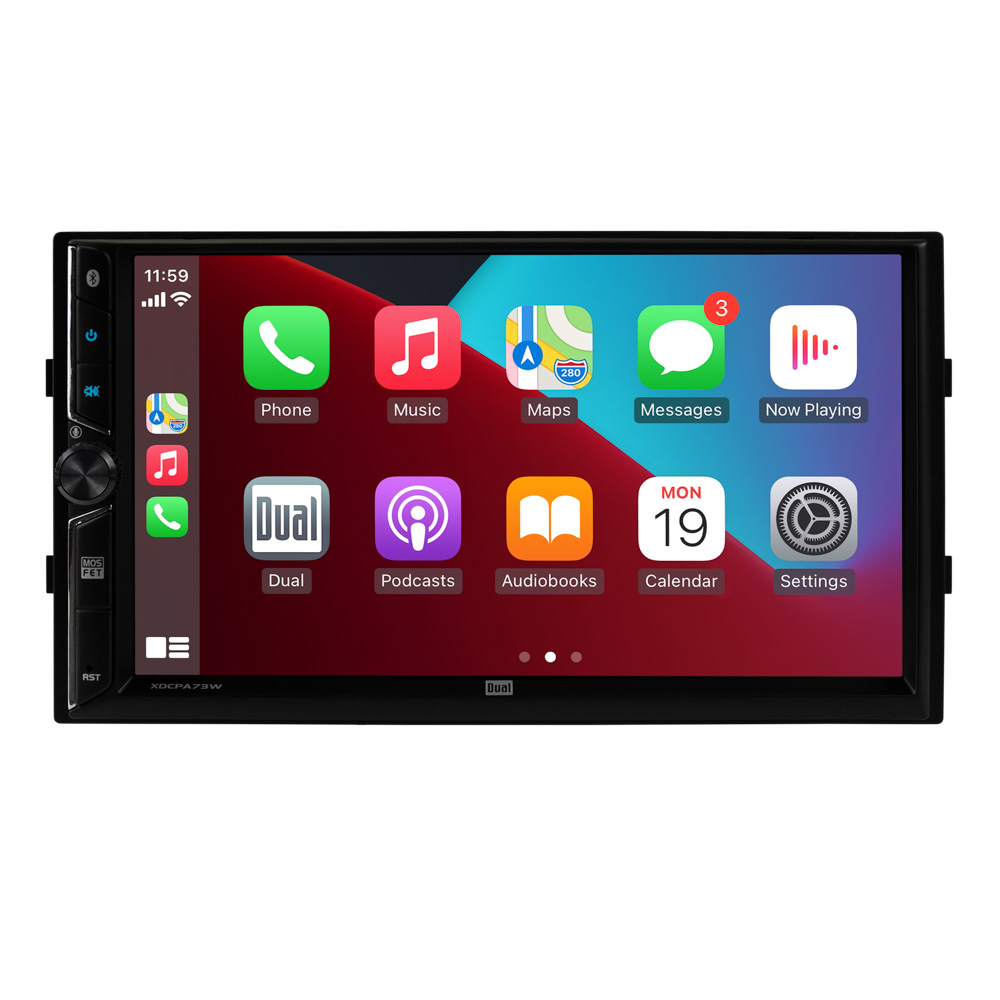
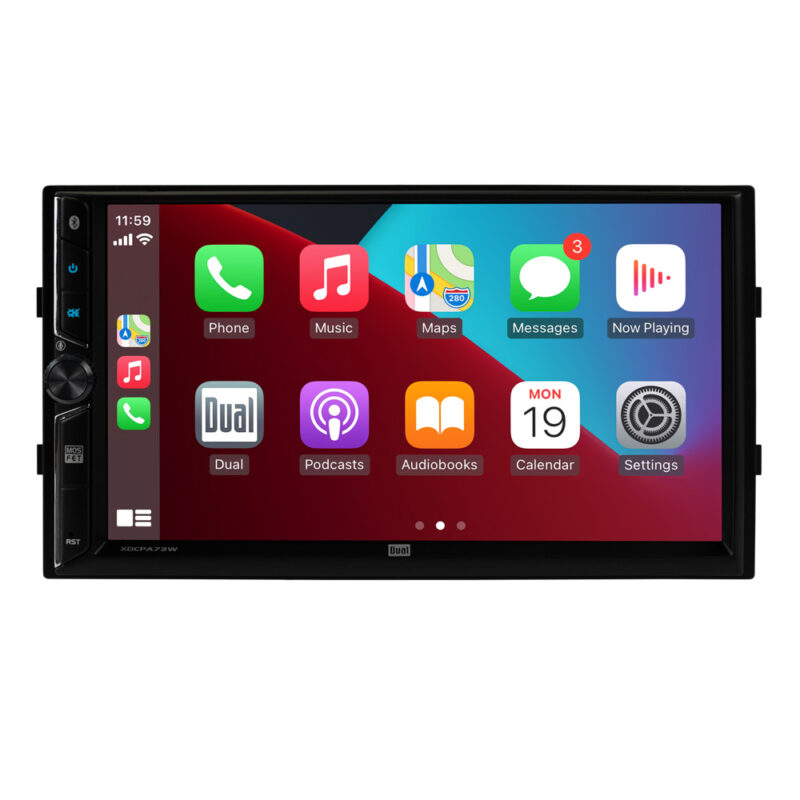
- Support for wireless Apple CarPlay and Android Auto
- Your favorite phone features on your dash without the phone ever leaving your pocket or bag
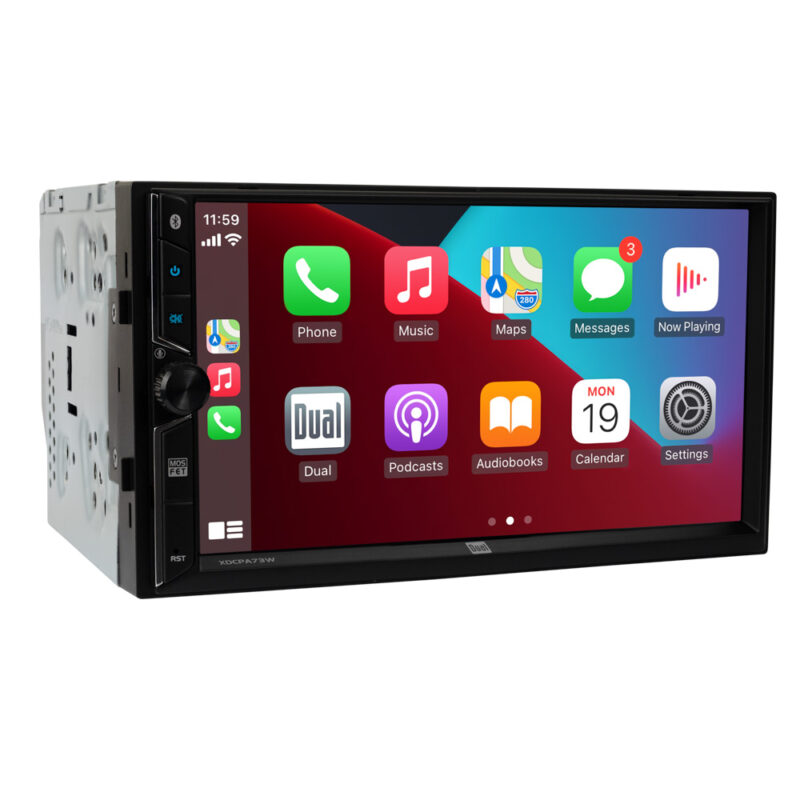
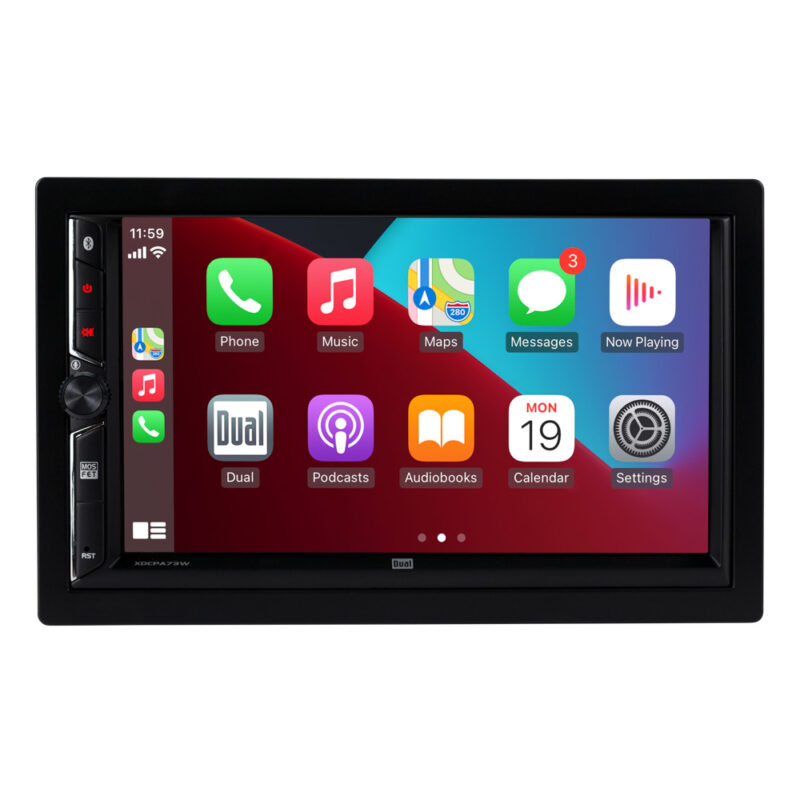
- Digital media receiver features a 7″ touchscreen
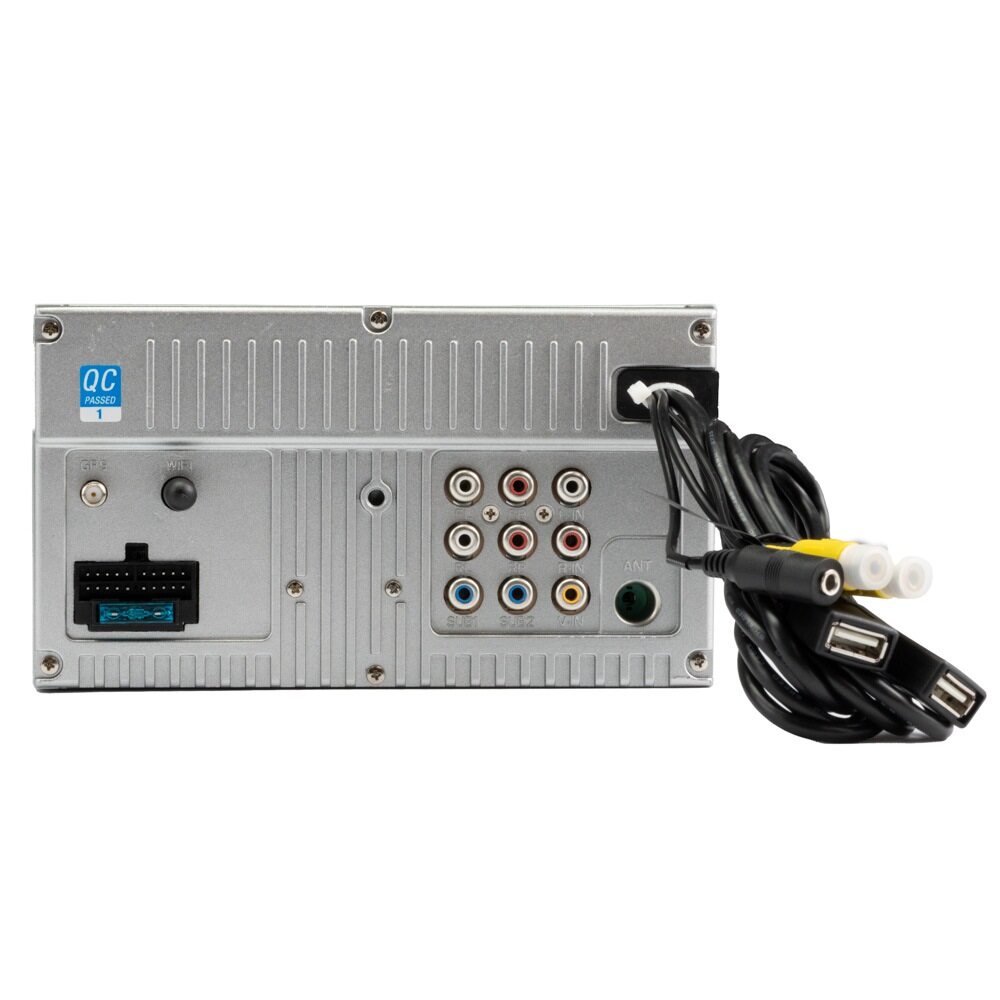
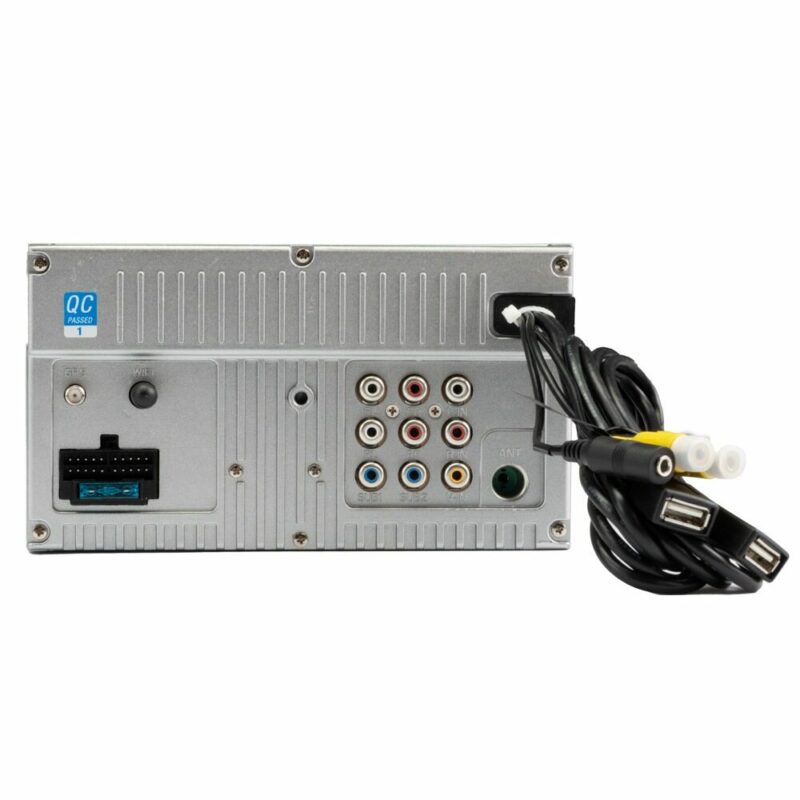
- Front and Rear Camera Inputs
- Fits most 2 DIN openings
Authorized Retailer:

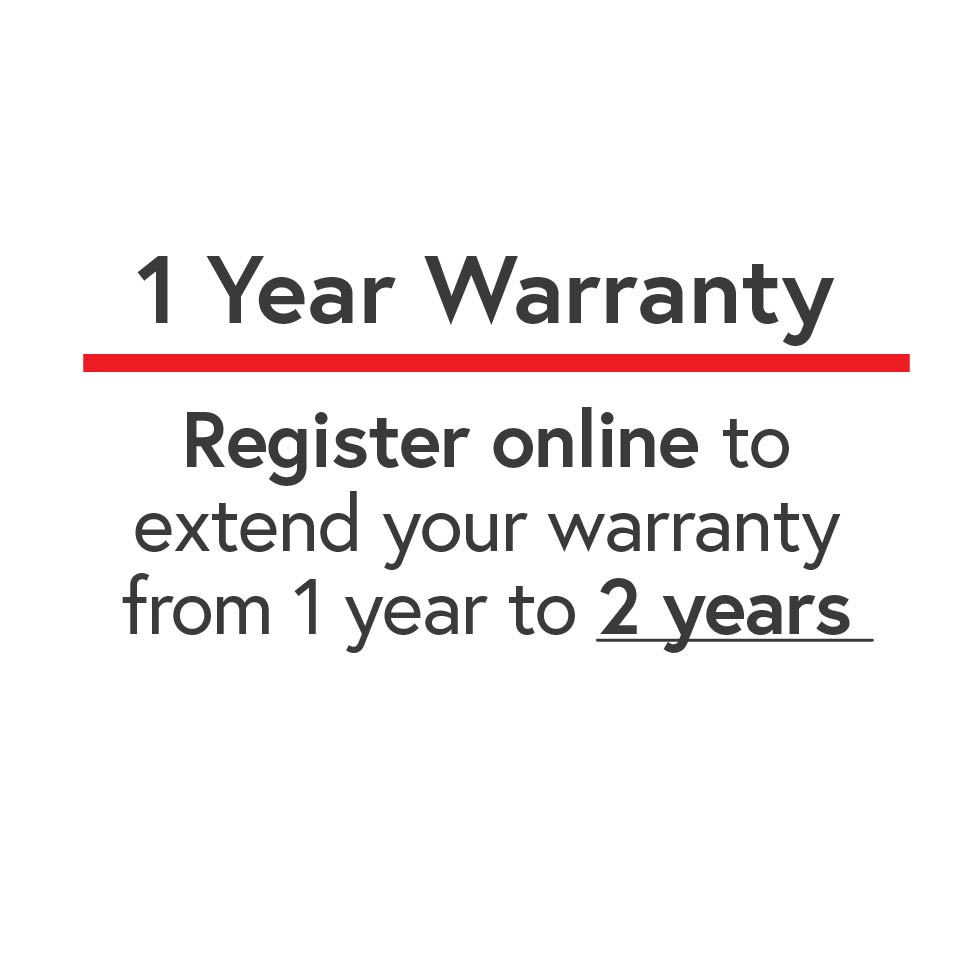
*Upgrade to a 2-year Warranty by Registering Your Item within 60 Days of Purchase.



Connected Car
With support for both wireless Apple CarPlay™ and Android Auto™ you can control key phone features directly from the receiver’s touchscreen or via voice-control — significantly reducing driver distraction.
Both Apple CarPlay and Android Auto launch upon connecting a compatible phone to the receiver wirelessly or via USB.

Messages
Ask your phone assistant to send, read, and reply to text messages. This hands free operation minimizes distraction and allows you to keep your hands on the wheel and eyes on the road

Maps
Use your phone assistant to request turn-by-turn directions – search by address or by points of interest. Maps will be mirrored on the receiver’s screen, including traffic information and estimated time to destination.

Music
Access music directly through the receiver’s touchscreen and via your phone assistant. The receiver will display artist and track information.

Phone
Use your phone assistant to make calls, return missed calls, listen to voicemail messages, and view the caller ID on the receiver’s screen.

Music Streaming & Hands-free Calling
Stream music, podcasts, and audiobooks from your smartphone and adjust tracks forward or backward directly from your Dual media receiver. Answer calls easily using the touchscreen icons.

| Stereo Type | AV Receiver |
|---|---|
| Playback | |
| Size | |
| Phone Connectivity | Android Auto, Android Auto Wireless, CarPlay, CarPlay Wireless, Bluetooth |
| Wireless | |
| Steering Wheel Control Compatible | |
| Screen Size | |
| Peak Power Output | |
| Bluetooth Features | Phonebook Support, Audio Streaming, External Microphone, Hands-free Calling, Voice Activation Button |
| Inputs | |
| USB Charge | |
| File Playback | |
| Preamp Outputs | |
| Illumination | |
| Audio Processing | 10 Band EQ, 8 EQ Presets |
| AM/FM Receiver | 30 Station presets (18FM/12AM), RDS Tuner |
| Wallpapers |
Firmware Update Instructions
A Note about Firmware Update via USB Devices
We recommend following the guidelines below for your USB drive:
- Use an 8GB or 16GB USB drive from a common USB drive manufacturer.
- Some recommended brands include:
- SanDisk®
- Kingston®
- PNY®
- Verbatim®
- Corsair®
- The drive should support USB 2.0 or faster transfer speeds. Older version USB 1.0 drives are not compatible.
- Format the drive using FAT32 as the file system on your laptop or computer before copying the software update to the USB drive.
Note: Software is not interchangeable between models. Please do not attempt this update on any model other than the XDCPA73W.
Download the appropriate Firmware for your SERIAL NUMBER RANGE. FAILURE TO USE THE CORRECT FIRMWARE WILL CAUSE THE UNIT TO BECOME INOPERATIVE.
Download Firmware Zipped File: XDCPA73W Firmware Download for serial numbers: NS73W0010101 and higher
(THESE UNITS HAVE 2 REAR USB PORTS)
Download Firmware Zipped File: XDCPA73W Firmware Download for serial numbers: NS73W0001001 through NS73W0010100
(THESE UNITS HAVE 1 REAR USB PORT)
How do I find my serial number? It can be found on the original box or the bottom of the radio
Units with 2 Rear USB Ports
The following update instructions and version information apply only to serial numbers NS73W0010101 and higher.
This update addresses the following:
- Improved touchscreen response time.
- Change the Safety Notice screen to disappear automatically after 2 seconds.
- Change Rear Camera View settings from on to off (default: OFF).
- Add Time Sync Settings - OFF/GPS/RDS/Phone (default: OFF).
- Improved connection with iPhone 16.
How to Update:
- Download the firmware file above for serial numbers NS73W0010101 and higher (2 rear USB ports).
- Unzip the downloaded file. Note: To unzip the file, the program WINRAR is required and can be downloaded from this link: WINRAR Download.
- Copy the
ISPBOOOT.BINfile and the Update folder to an empty USB Thumb Drive formatted to FAT32. - Insert the USB Thumb Drive containing the update firmware into the XDCPA73W Android Auto/Apple CarPlay Port Only.
- Navigate to Settings and scroll until you reach the About button on the left side of the menu.
- Press the About button. On the right-hand side, you will see Software Update.
- Press Software Update, and then press the Update button to begin the firmware upgrade.
- Once the update is complete, remove the USB thumb drive.
- The update is now complete.
To check that the update was done correctly, go to Settings and press About. For XDCPA73W units with serial numbers NS73W0010101 and higher, the following version information confirms the update:
MCU: GD72-250710
SOC: XDCPA73W-250806
Hardware Version: 2.0.3
Software Version: 2.0.3
SDK Version: MJ2.2 54.0.20.0.2.6.1.0
Units with 1 Rear USB Port
These instructions apply only to serial numbers NS73W0001001 through NS73W0010100. Use only the original firmware linked above for this range. Do not install the 250813 firmware on these units.
How to Update:
- Download the original firmware file above for serial numbers NS73W0001001 through NS73W0010100 (1 rear USB port).
- Unzip the downloaded file. Note: To unzip the file, the program WINRAR is required and can be downloaded from this link: WINRAR Download.
- Copy the
ISPBOOOT.BINfile to an empty USB Thumb Drive formatted to FAT32. - Insert the USB Thumb Drive containing the update firmware into the XDCPA73W USB/Charging Port.
- Navigate to Settings and scroll until you reach the About button on the left side of the menu.
- Press the About button. On the right-hand side, you will see Software Update.
- Press Software Update, and then press the Update button to begin the firmware upgrade.
- Once the update is complete, remove the USB thumb drive.
- The update is now complete.